
 Doc Summary

In this section, you can manage patient prescriptions, add medicines, advice, follow-ups, lab reports, next plans, view previous medicines, and upload documents.
Viewing Patient List
Patient List: View and search for patients. Click the prescription icon in the action section to open the prescription page for the selected patient.
Prescription Management
Add Medicine:
Click the “Add Medicine” button to open a modal.
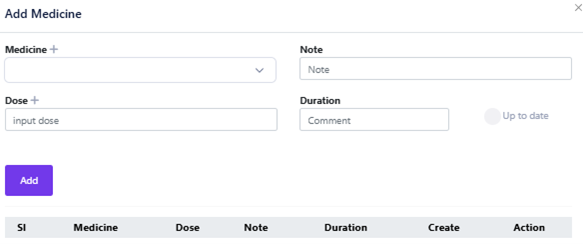
Select the medicine, medicine comes from the medicine database (Setting > Medicine Database). Input any notes, dose, and duration.
If needed, input the from and to date duration, then click “Add“.
You can add multiple medicines at a time.
Add Advice:
Click the “Add Advice” button to open a modal.
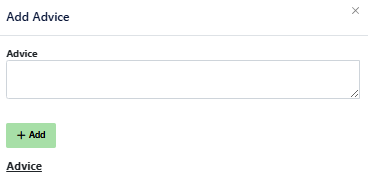
Input the advice and click “Add“.
After complete the update medicine then need to click Prescription Generate button, to generate the prescription.
Follow-up
Add Follow-up:
Click the “Add Follow-up” button to input follow-up details.
Generate follow-up reports by clicking “Get Report“.
Lab Report
Add Investigation:
Click the “Add Investigation” button to open a modal.
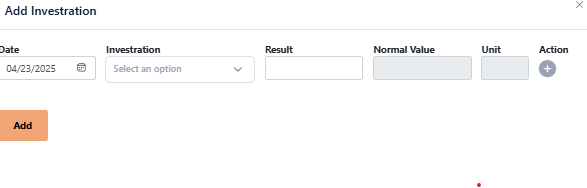
Input the date and select the investigation, investigation come from Setting > Diagnosting > Subcategory.
Normal values and units will auto-populate; input only the result.
You can add multiple investigations at a time.
Generate investigation reports by clicking “Get Report“.
Next Plan
Next Plan:
Input the date and next plan details.
View all next plans and notification dates in the notification section.
Previous Medicine
View Previous Medicines:
See all previous medicines prescribed to the patient.
Upload Documents
Upload Documents:
Upload documents related to the patient with a title.

Action Buttons
PDF Button:
Generates a PDF of the prescription with the medicine’s generic name.
Print Button:
Generates a PDF of the prescription with the medicine’s brand name only.
Email Button:
Sends the prescription to the patient’s registered email address.
Pilot Button:
Opens the AI assistant chat. You can ask any questions, and the chatbot will analyze the question and provide answers based on the patient’s data.


