
 Doc Summary

In this section, you can create OPD appointments, schedule appointments, write prescriptions, and manage patient information.
Add OPD Appointment:
Click the “Add OPD” button. Input the date and time. Select the doctor’s name. Select the patient’s name.
Action Section:
After creating the OPD appointment, you can: Generate two types of PDFs: one with a logo and one without. Create an OPD prescription by clicking the prescription icon.
Delete the OPD appointment by clicking the delete icon.
1. OPD Prescription #
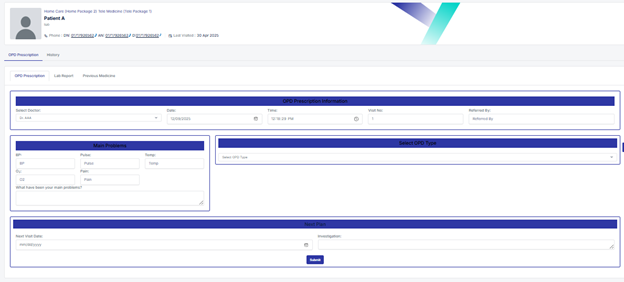
Fill OPD Prescription Information, Enter the main problems.
Select the OPD type:
OPD Only: For OPD consultations only.
Main Prescription: For a full prescription.

Add Medicine:
Click the “Add Medicine” button to open a modal.
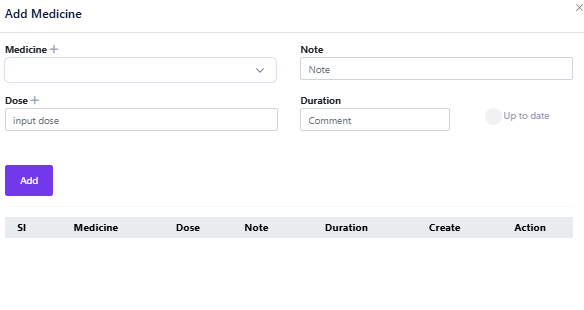
Select the medicine, medicine comes from the medicine database (Setting > Medicine Database). Input any notes, dose, and duration.
If needed, input the from and to date duration, then click “Add“.
You can add multiple medicines at a time.
Add Advice:
Click the “Add Advice” button to open a modal.
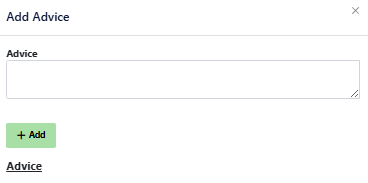
Input the advice and click “Add“.
Next Plan:
Input the next visit date if needed.
Input any investigations if required.
Click “Submit” to save all data and create an Prescription PDF.
Lab Report
View Lab Reports: See all lab reports inputted in the application for the selected patient.
Previous Medicine
View Previous Medicines: See all previous medicines prescribed to the selected patient.
2. History #
View Patient Profile and History: See the patient’s profile and all historical data. Update the patient’s history if needed.


