
 Doc Summary

This HR setting is connected to the HR menu.
1. Shift Setting #
Connection: This shift is linked to the roster, payroll, salary, and staff sections.
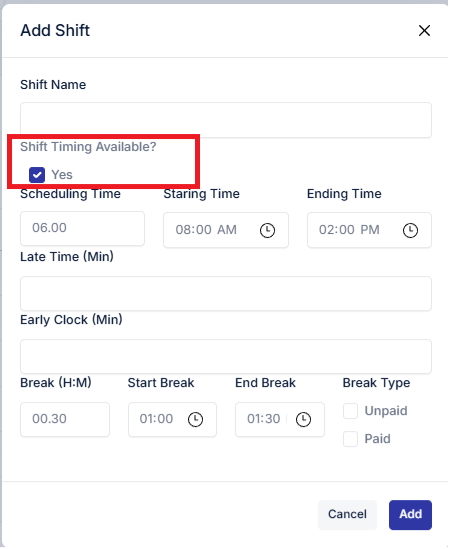
Adding a New Shift
Add the shift name.
Select the work week.
Enter the shift starting and ending times (scheduling time will be calculated automatically).
Input late time and early time.
Enter break time and specify if the break is paid or unpaid (this will be connected to payroll or salary).
Click Submit to save the shift.
Editing a Shift
Click the Action option and select the Edit icon.
Make the necessary changes and click Update.
Deleting a Shift
To delete a shift, go to the Action option and click the Delete icon. Hanges, and click Update.
2.Global Leave #
Global Leave is connected to the roster and staff sections. If the global leave option is checked when creating staff, it will automatically update the staff roster to include the global leave.
Adding Global Leave
Input the date and name of the global leave.
If it is a yearly leave, check the yearly option to update it every year.
Click Submit to save the global leave.

Editing Global Leave
Click the Action option and select the Edit icon.
Make the necessary changes and click Update.
Deleting Global Leave
To delete a global leave, go to the Action option and click the Delete icon.
3. Deduction #
This section is directly connected to Staff Accounts and the Payroll system. It ensures that any staff-related updates are automatically reflected in the salary sheet.
Adding or Updating Staff Information
When creating or updating a staff account, you will see a field for Deduction Amount.
Enter the required deduction value (e.g., loan repayment, late attendance penalty, or other deductions).
This amount will be automatically added to the Payroll or Salary Sheet during salary calculation.



